One person out of a street portrait
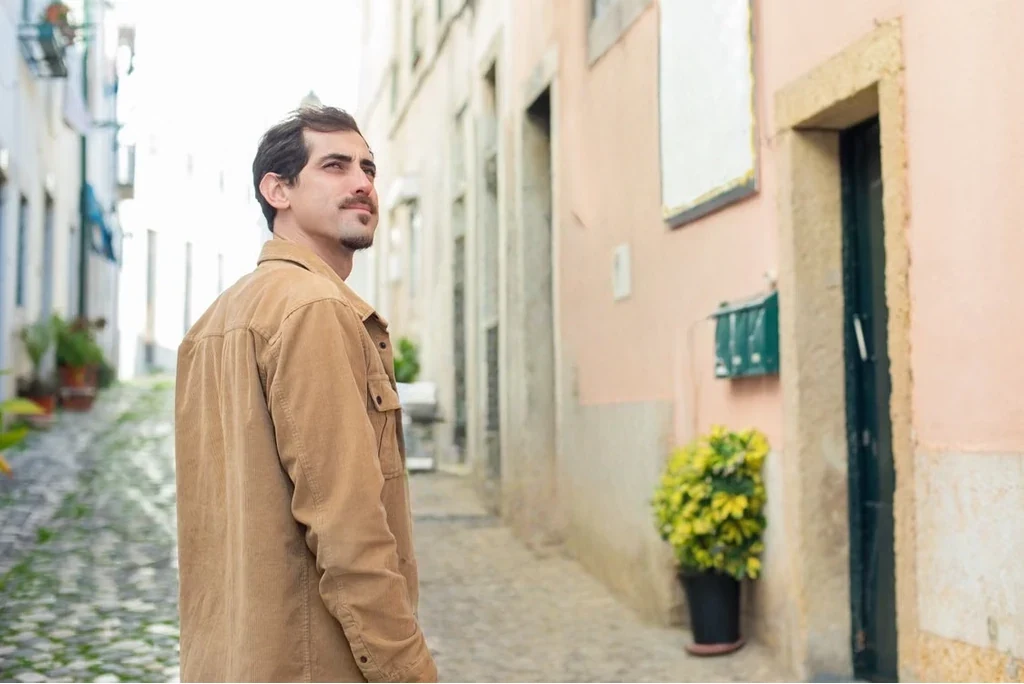
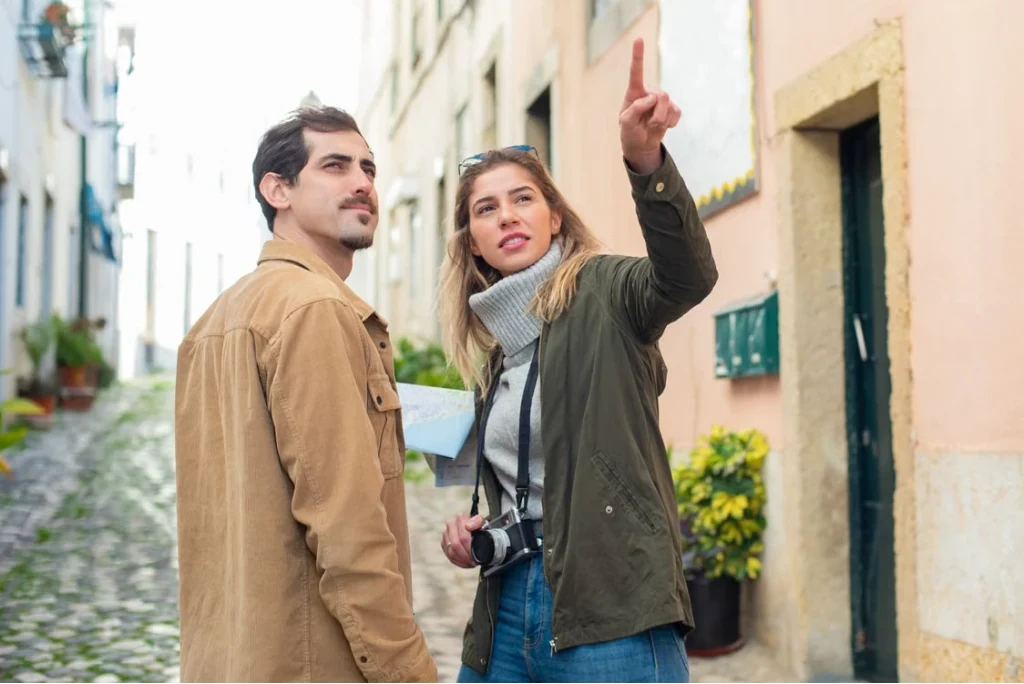 BeforeAfter
↔
Drag to compare
REMOVE PERSON
Upload a photo, brush over the person to remove, and add an optional detail.
1 Rescue Credit per edit, confirmed before generating. AI may change some details.
Loading your workspace…
FIX THE PHOTO. KEEP THE MOMENT.
MomentRescue Remove Person from Photo is an online AI editing tool for travel, group and personal photos. Mark the person you want to remove and review an edit that attempts to fill the background while preserving the people and moments you want to keep.
Choose one JPG, PNG or WebP up to 10 MB and preview it in your browser. Convert HEIC photos first.
Brush roughly over the person; you do not need to trace every edge. Use Eraser, Undo, Clear and Zoom to adjust your marks. An optional detail, such as “the man on the left in a white shirt,” can help identify the target.
Sign in and confirm the cost to generate. AI attempts to remove the selected person and repair the background. Check Before/After, inspect nearby people, and download the actual PNG result at its displayed dimensions.
Watch the change, then pause or drag the divider to inspect the result.
Shared with permission from our PersonRemover project, rather than new MomentRescue test runs. Results vary; AI may change nearby details.
BeforeAfter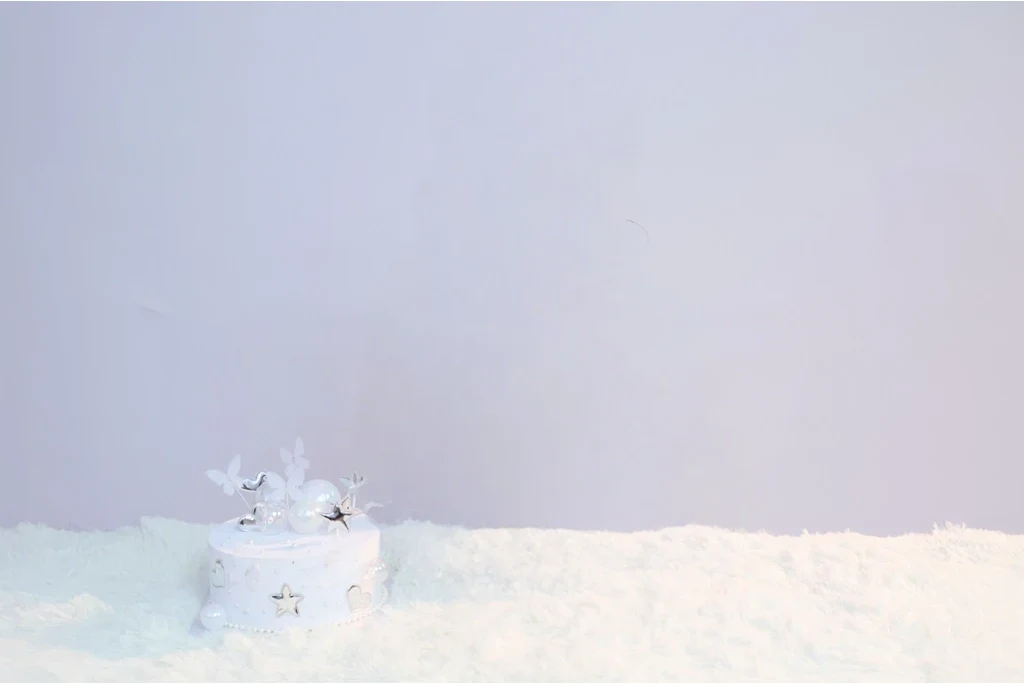
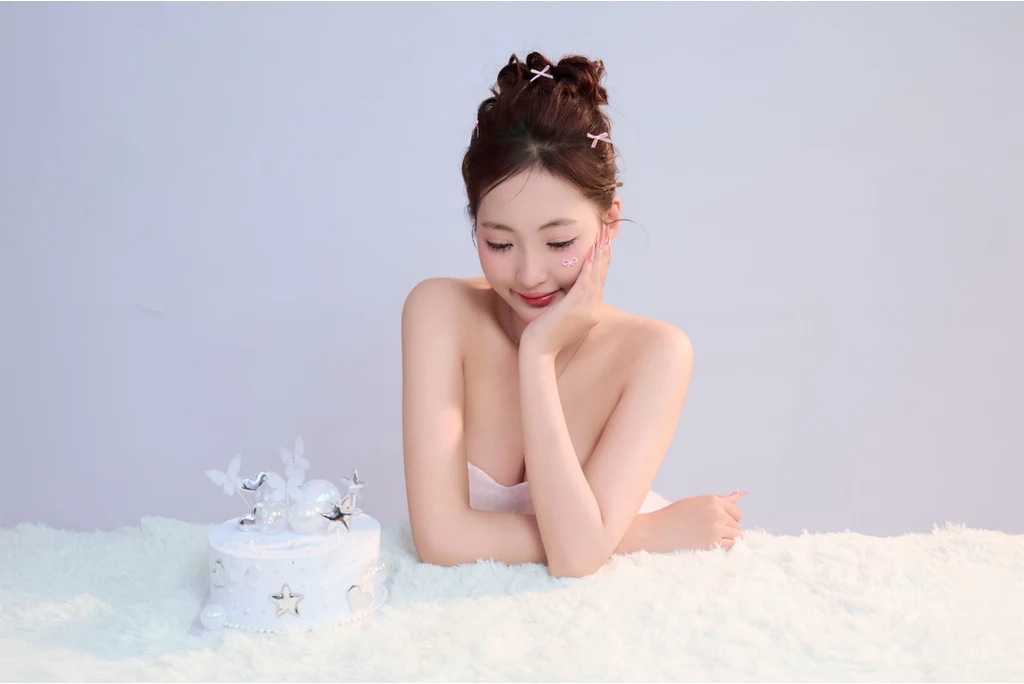 BeforeAfter
From a background passerby to someone in a family picture, start by marking one person you want to remove. Results depend on the photo.
Try removing a stranger behind you in a street or vacation photo. Check whether their shadow or reflection remains.
Mark one person in a group or family picture. When people are close together, neighboring arms, clothing and poses may change.
Select an unwanted person at the side of the frame. Review the rebuilt edge, especially where the person was partly cropped.
Keep the scene you wanted to photograph. Check stairs, railings and building lines where the person used to stand.
Edit a personal picture that includes someone you no longer want in it, such as an ex. Use photos you have permission to edit.
The AI tries to fill the person's former position with background that fits the scene. It generates a plausible view of what was hidden; it cannot reveal the original hidden detail.
Other people are meant to stay in place. If you remove someone from the middle of a group, an open space may remain. People will not automatically move closer together.
This is an AI edit that needs your review. It is not a guarantee that the target will disappear or that the rest of the photo will stay unchanged.
A mark over part of a person guides the AI to attempt the complete removal; it can still leave body parts behind or choose the wrong person. Accidental marks on a neighbor can confuse the selection. Erase them and add a short detail when needed.
Holding hands, hugging or resting an arm on someone can make bodies difficult to separate. If the removed person hides part of someone else, the AI must invent that unseen area. Hands, arms and clothing may look different or unnatural.
The tool fills the area where the person stood. It cannot know exactly what was hidden. Railings, stairs, architectural lines and text can be rebuilt incorrectly. Shadows and mirror reflections may remain.
Faces, clothes, poses, colors and textures outside your marks may change. Output dimensions can also differ from the upload. Check the entire result, not only the removed person, before keeping or sharing it.
The default goal is to keep the remaining people in their original positions. Removing someone from the middle may leave an open space filled with background. This tool does not automatically move people closer or offer detailed pose reconstruction.
Each new Person generation costs 1 Rescue Credit. Selecting a photo and making marks do not use Credits. Check your balance and confirm before generating.
New accounts receive one free Credit shared across MomentRescue tools. An unused free Credit can cover a Person edit when you have access to the tool.
The Credit is deducted on submission. A confirmed processing failure returns it; an unresolved task keeps it deducted until confirmed. A delivered result still uses its Credit even if the edit is unsatisfactory.
No retry is included or started automatically. A new attempt costs another Credit. Downloading the saved result adds no charge. See Credit packs and Terms of Service.
Generation sends a prepared full photo, a marked reference and your optional description to fal.ai and its model infrastructure. The original upload is kept separately.
Submitted originals, processing copies and results are stored privately in your account with a 30-day access window. Scheduled cleanup removes expired files. Download anything you want to keep before it expires, or delete a finished photo earlier in your account.
Unsubmitted work may remain in this browser as a draft. Provider copies and necessary billing records have separate retention; deletion here does not independently delete provider records.
Only use photos you have permission to edit. Read our Privacy Policy and learn about MomentRescue.
Upload a JPG, PNG or WebP, brush over the person, and optionally describe their position or clothing. Sign in, confirm 1 Rescue Credit, then generate. Compare the original and result before downloading the edited photo.
No precise outline is required. Rough marks guide the AI to attempt removal of the complete person, even when only part is marked, but it can misunderstand or leave parts behind. Erase accidental marks on anyone you want to keep. A short description is optional.
You can mark a person in a group photo and try an edit. People standing close together or overlapping are harder to separate, and nearby arms, faces or clothing may change. Review everyone who remains.
The area hidden by the person needs new background content. AI attempts to match the surrounding scene, but it cannot recover the exact hidden view and may also change other background details.
The goal is to preserve the remaining people, but faces and other details are not guaranteed to stay identical. Inspect each person in Before/After before downloading or sharing the result.
It can attempt the edit, but joined hands, hugs and overlapping arms are difficult. The AI may need to invent hidden body parts, which can produce changed or unnatural hands, arms and clothing.
AI attempts to fill the space with background that fits the surrounding photo. This is generated content, not a recovery of what was behind the person. Check patterns, straight lines and nearby people for errors.
No. The default instruction is to keep the other people in their original positions. The space left by the removed person is filled with background; automatic group rearrangement is not included.
Selecting a photo and marking it do not use Credits. New accounts receive one free Rescue Credit shared across MomentRescue tools. If yours is unused, it can cover one Person edit when you have access to the tool. Otherwise, generation uses a paid Credit.
Each new Person generation costs 1 Rescue Credit, deducted when you submit. No automatic or included retry is provided. Another generation requires another Credit and confirmation. Downloading an existing result costs no additional Credit.
Review the result and leave feedback, or return to editing to adjust your marks and optional description. Feedback does not start another generation or automatically refund a Credit. An unsatisfactory delivered result still uses its Credit; a new attempt costs 1 more. A confirmed processing failure returns the Credit, while an unresolved task keeps it deducted until its outcome is confirmed.
Submitted originals, processing copies and results are stored privately with a 30-day access window and scheduled cleanup. To generate, MomentRescue sends a prepared full photo, a marked reference and your optional description to fal.ai and its model infrastructure. You can delete finished photos from your account. Browser drafts and provider copies have separate retention; deleting here does not independently delete provider records. See the Privacy Policy for details.
1 Rescue Credit
Fix accidental closed eyes using a real reference photo.
1 Rescue Credit
Reduce distracting lens reflections without changing the whole photo.
1 Credit / task
Reduce distracting cast shadows and patchy lighting in one complete photo. Generative processing may change details; review the result.