In a group photo, everyone else may look ready while one person blinks. Before editing, check nearby shots or a burst sequence for a frame you prefer. If this is still your favorite composition, a targeted eye repair lets you work on the selected person instead of asking the AI to recreate the entire group.
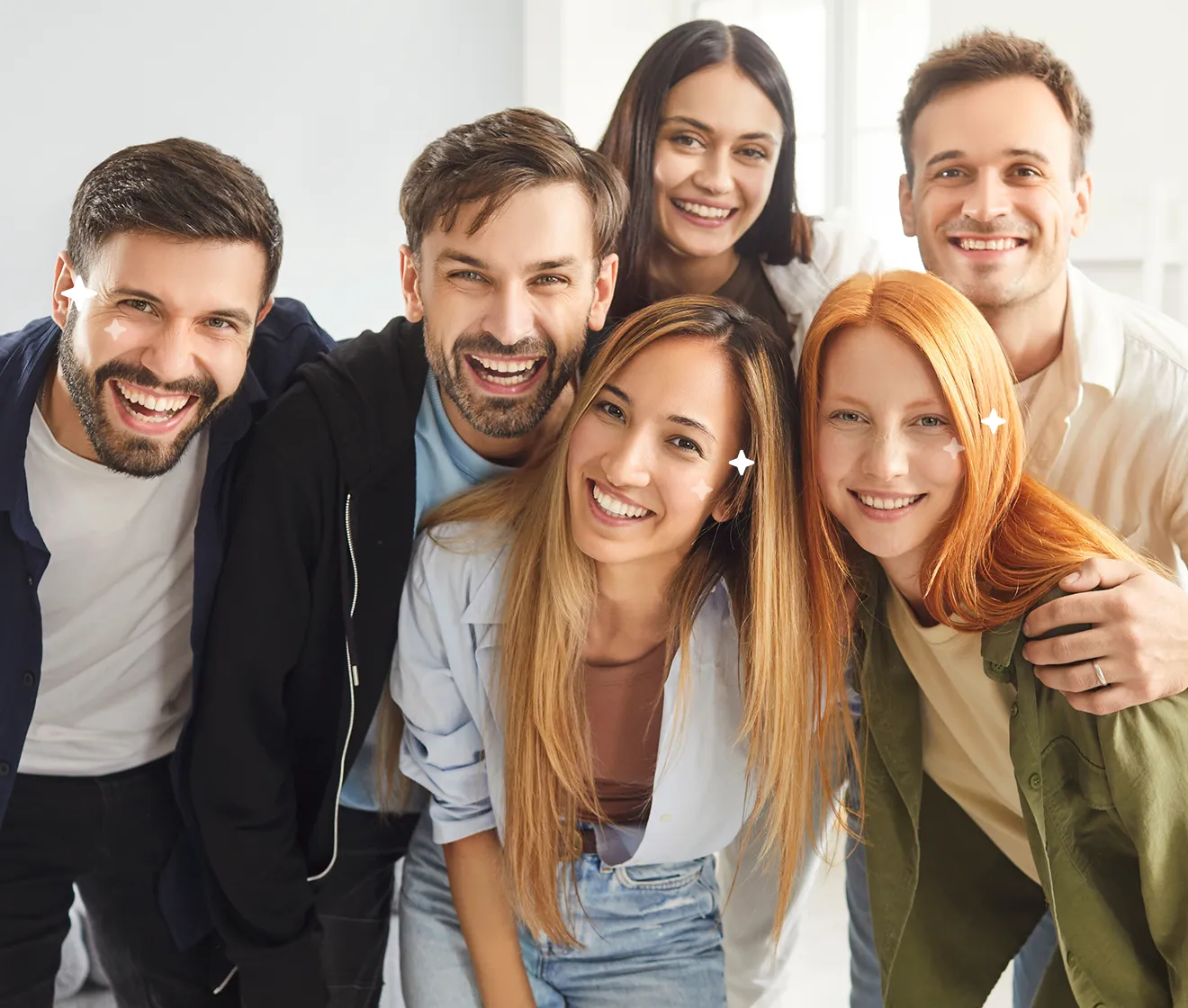
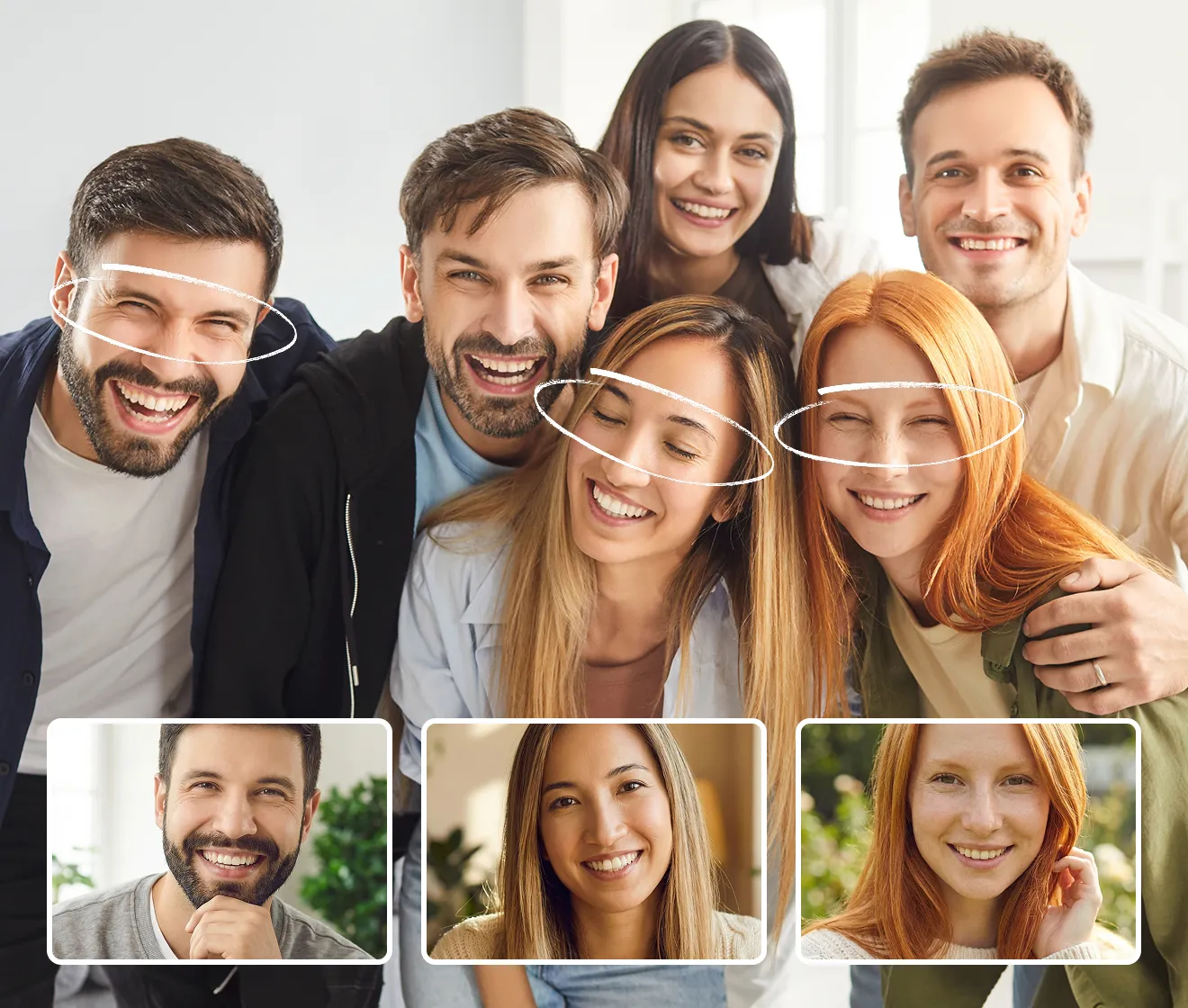 BeforeAfter
Groups
A whole group in the frame
An Evoto group demonstration. MomentRescue currently repairs one selected person per operation.
Evoto demonstration · View source ↗
Choose the person, not the whole group
Upload the group photo and wait for the face outlines. Select the person who blinked and check the thumbnail before continuing. The outline numbers identify detected faces; they do not indicate who needs fixing. You can change your selection before starting the restoration.
On a phone, small faces can be difficult to distinguish. Use a clear original and check the selected-person preview. If the intended face has no outline, try a clearer photo rather than selecting a different person.
Use the same person as the reference
A reference can be another group photo or an individual portrait. What matters is the identity of the selected person and the visibility of their eyes. In a group reference, click the matching person again; selecting them in the original does not automatically identify them in another photo.
A nearby shot from the same occasion may provide similar pose and lighting. Do not use another person’s eyes as a substitute. Our reference checklist explains what to look for.
The current tool does not automatically repair every blink or offer batch editing. Check the selected face before each operation.
What stays the same?
The generated edit is blended back into the selected eye area with a soft edge. The surrounding decoded image is retained outside that area, rather than regenerating all the people or the background. The download is a new PNG, so its encoding and metadata can differ from your original file.
Review the full-size result around the eyelids, glasses, eyebrows, and nearby faces. The final appearance still depends on the source photo, reference, and generated result.
What if two people blinked?
- Repair the first person and inspect the result.
- Download that result and keep the original separately.
- Start a new photo using the downloaded result, then select the second person.
- Check both repaired people before saving the final version.
This is a manual sequence, not a single multi-person operation. Each restoration runs separately. If the PNG exceeds the 10 MB upload limit, it cannot be used in the next operation without reducing its file size; avoid repeated heavy compression that makes faces harder to inspect.
When to choose another photo instead
If someone’s face is very small, turned far away, obstructed, or heavily blurred, an AI edit may invent detail rather than recover their actual appearance. For an important portrait, compare against real photos of the person and keep the original if the result does not feel like them.
For every click in the process, follow the complete eye repair walkthrough.