Compare Stray Hair Before and After
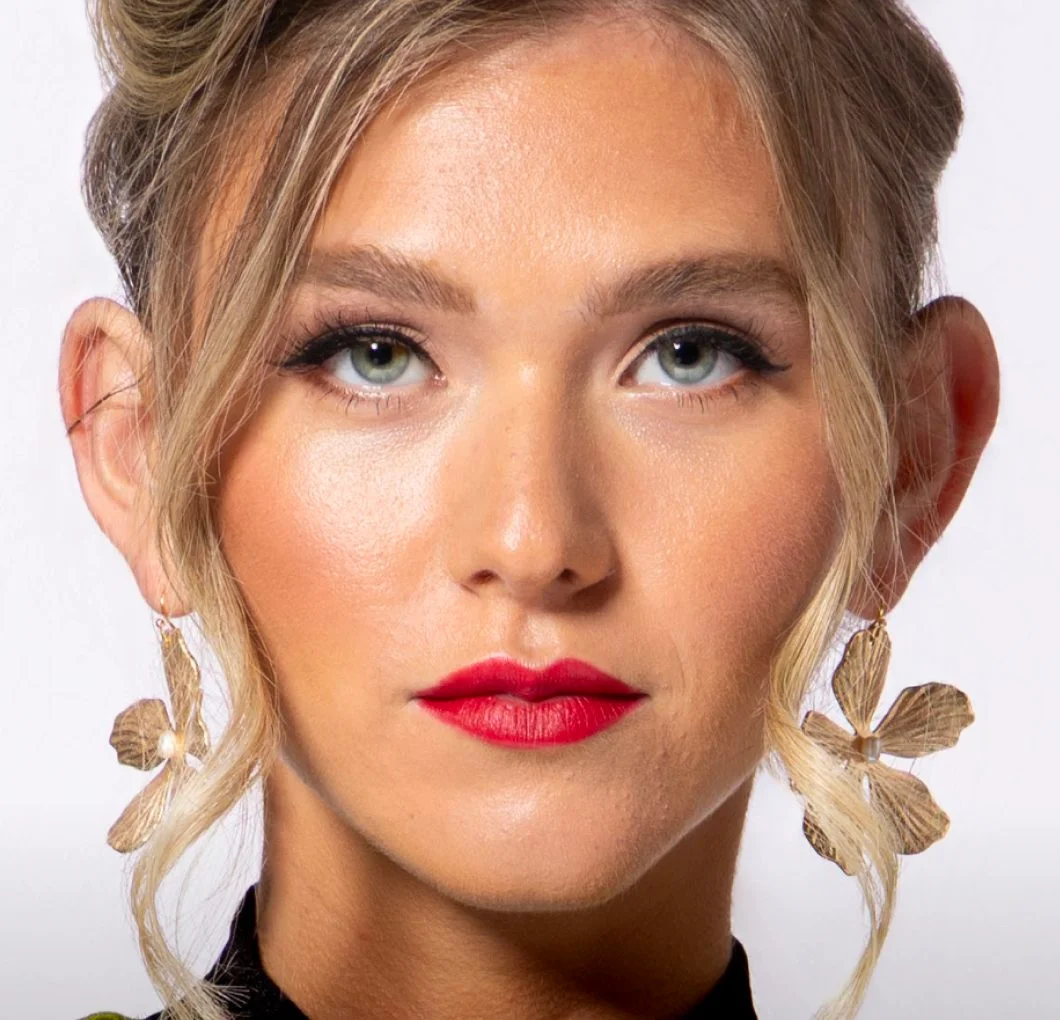
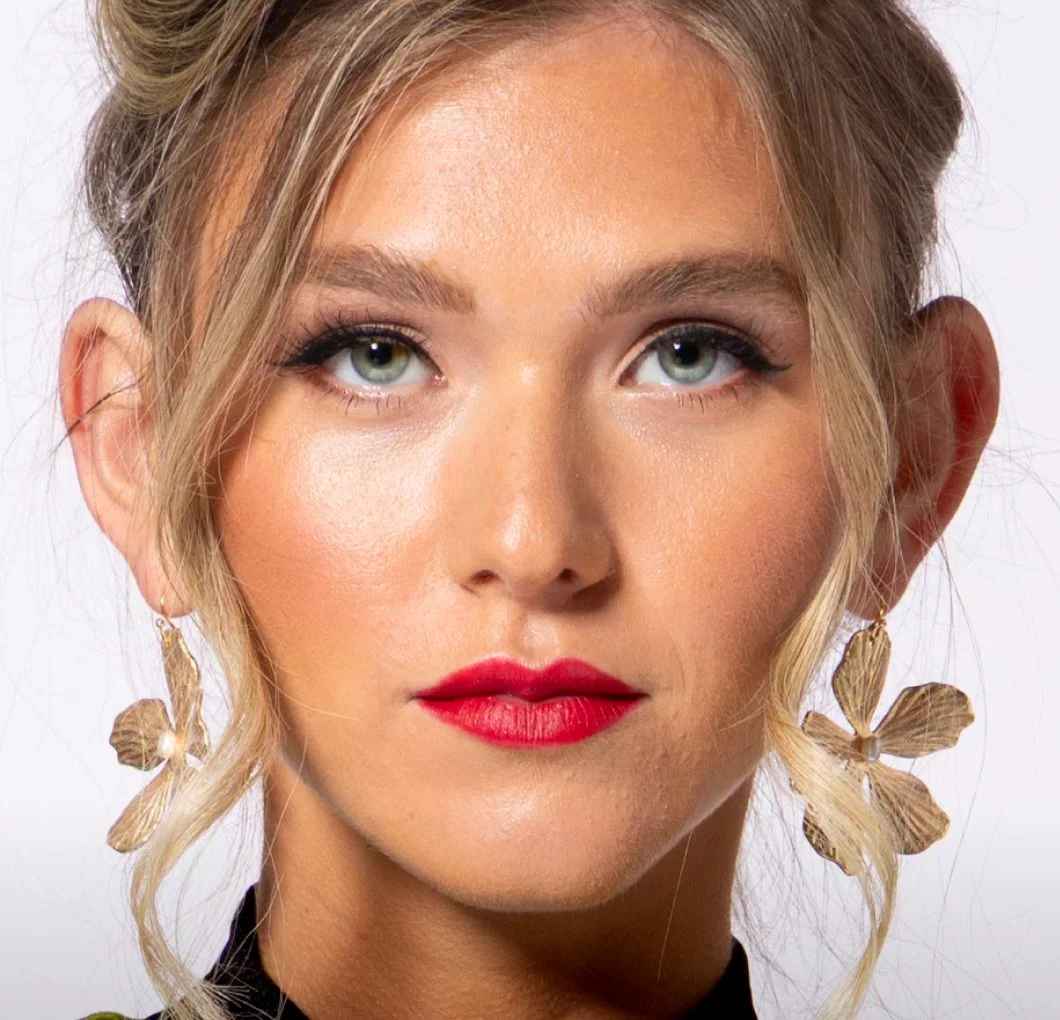
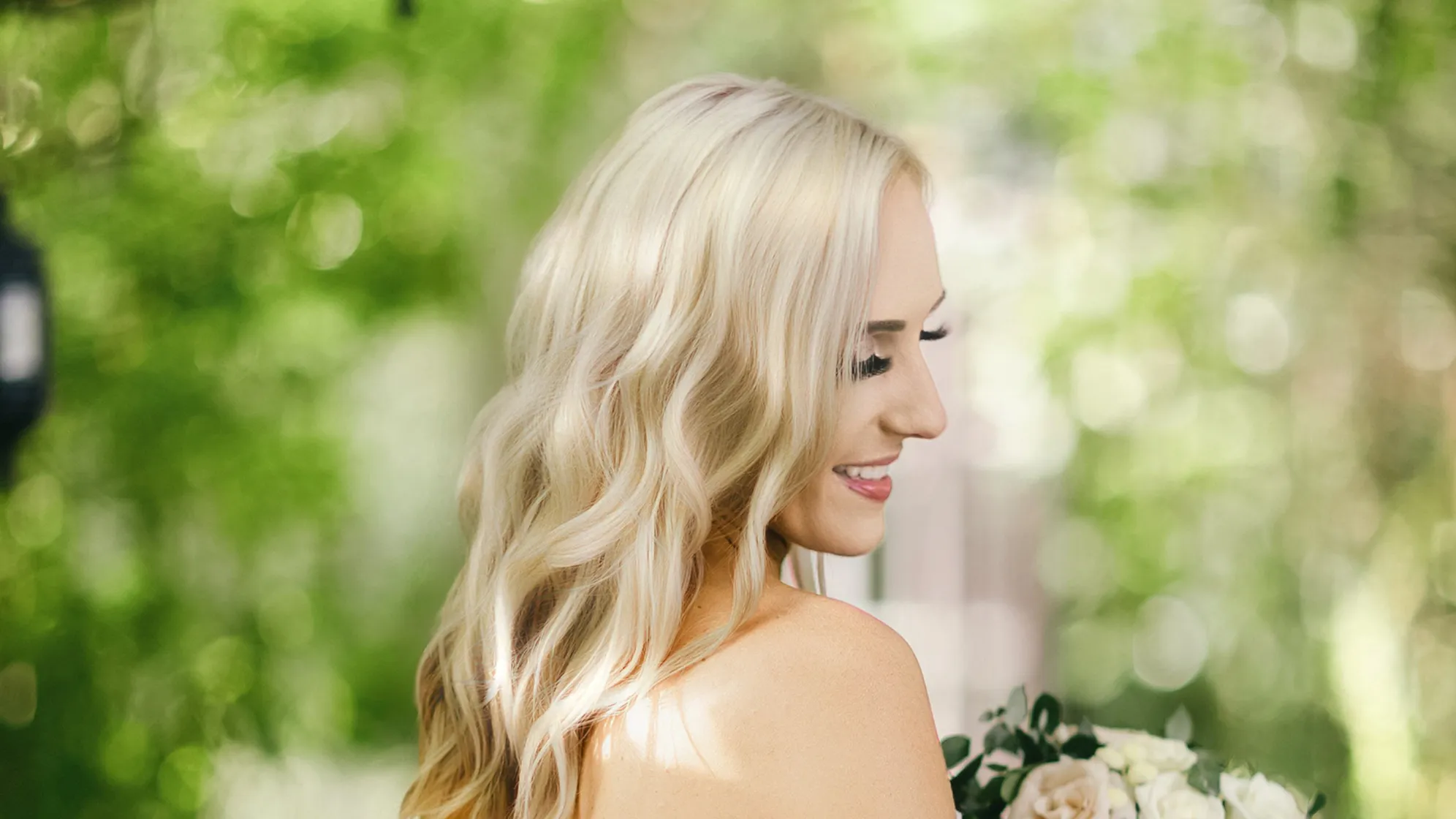
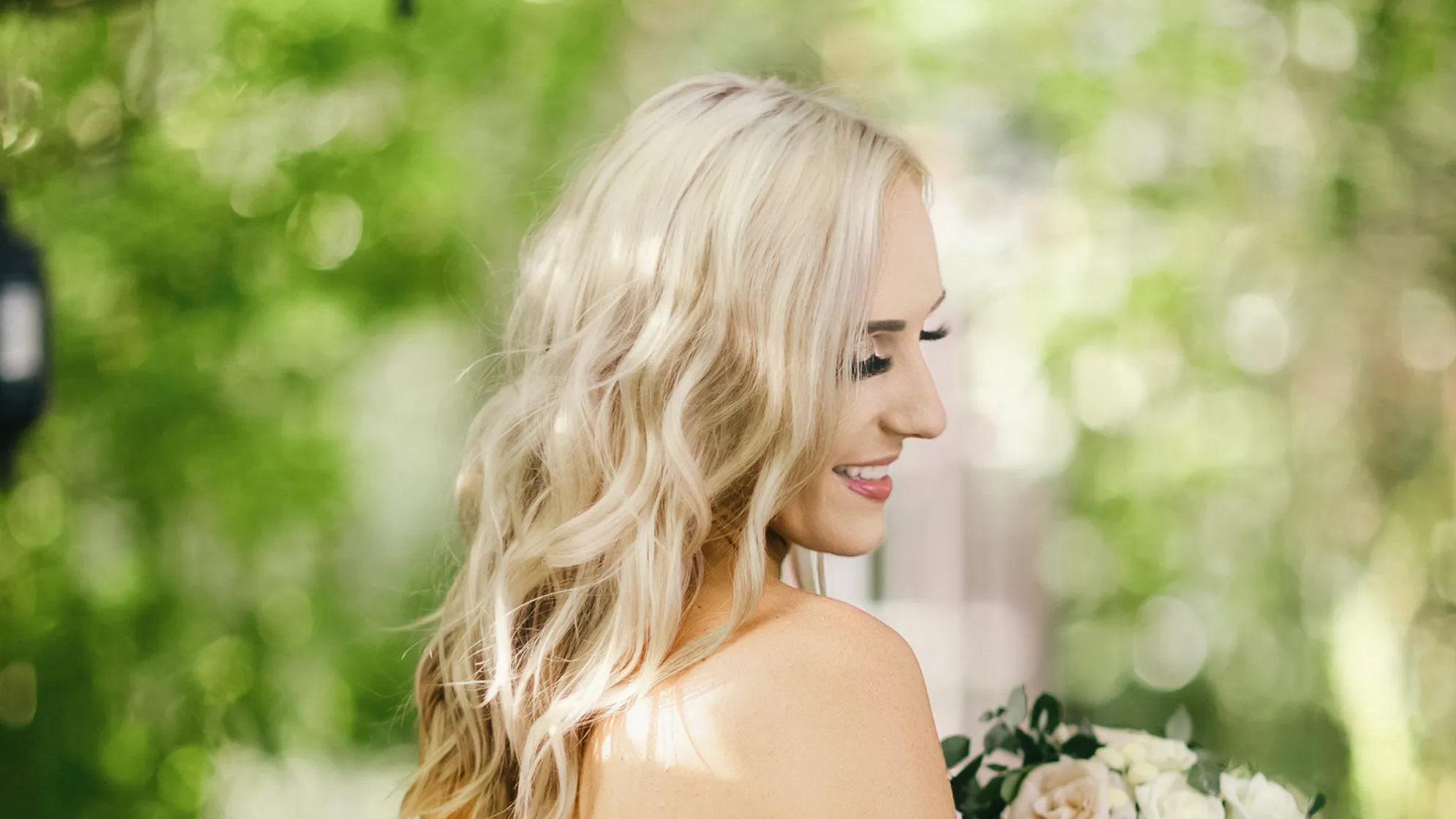
Drag the divider or tap Before and After. Look closely at the strands, skin texture, eyebrows and eyelashes. Results vary by photo.
 BeforeAfter
STRAY HAIR CLEANUP
Fine strands across the cheeks
Compare the thin strands across the cheeks and near the ears. The main curls framing the face remain in place.
 BeforeAfter
STRAY HAIR CLEANUP
Flyaway hair in an outdoor portrait
Inspect the loose strands along the outside of the hairstyle against the background, as well as the curls and facial details.
What This Photo Hair Remover Does
Stray hair cleanup is a local portrait edit: it aims to remove selected loose head-hair strands that cross the face and fill the small areas they covered. Your marks identify the strands to edit, while the original photo supplies the surrounding detail. It is different from deleting a person, shaving a beard or replacing a hairstyle.
AI can change details even with a careful selection. Check the eyes, eyebrows, eyelashes, hairline and skin texture against the original.
How to Clean Up Stray Hair in a Photo
- Choose the original photo. Use a clear JPG, PNG or WebP up to 10 MB. One portrait is the simplest starting point.
- Mark only unwanted strands. Zoom in, choose a small brush, and paint over hair crossing the forehead or cheeks. Use Eraser or Undo to protect nearby features.
- Review and generate. Check your marked preview, sign in and confirm the displayed generation cost. Your first generation is free once across the whole site.
- Compare before downloading. Inspect the cleaned area and unchanged features. View the saved watermarked preview freely; purchase a Credit for its clean download.
Which Hair Is Suitable for Cleanup?
- A few strands over the forehead or cheeks: mark each small area and keep surrounding hair outside the brush.
- Flyaway strands near the face edge: inspect both the skin and background transition after generation.
- Dense hair covering an eye or much of the face: missing facial detail makes the result less reliable. Consider another photo or a retake when possible.
Keep Other Photo Repairs Separate
For a blink, use Open Eyes. For reflections on lenses, use Remove Glasses Glare. This tool is for stray hair in photos; it does not replace those repairs.
To add space around a portrait, use the AI Image Extender.
Stray Hair Cleanup FAQ
How do I remove hair from my face in a photo?
Upload a JPG, PNG or WebP photo, then use a small brush to mark the loose strands you want to clean up. Review the marked area and generation cost, sign in, and generate. Compare the saved result with the original before downloading.
Does this remove facial hair or change my hairstyle?
This tool targets marked stray head-hair strands across the forehead, cheeks and face edges in a photograph. It is not designed to remove beards, mustaches, eyebrows or eyelashes, change a hairstyle, or provide real-world hair removal.
Can it remove hair covering my eyes?
Small strands near the eyes can be marked carefully, keeping eyebrows and eyelashes outside the selection. A thick lock hiding an eye is harder: AI may invent missing detail or change the face. The original appearance underneath cannot be verified from an obscured photo.
Can I remove flyaway hair without Photoshop?
You can mark distracting flyaway strands in this browser editor without installing Photoshop. Start with a small area, use Undo or Eraser to correct your selection, and inspect the result for changes to skin texture, facial features and the hairline.
Is generation or downloading free?
Signing in does not grant Credits. One free generation is shared across all MomentRescue tools. View its saved watermarked preview freely; a clean download costs 1 purchased Credit. Later generations cost 1 purchased Credit and include the clean download. Viewing or downloading an unlocked saved result again does not use another Credit.
How are my photos handled?
Before generation, the selected photo and marks are kept as a draft on this device when browser storage is available. Submitting sends the original and a marked selection guide for AI processing through fal. Submitted photos are saved privately to your account for 30 days and can be deleted in My photos.